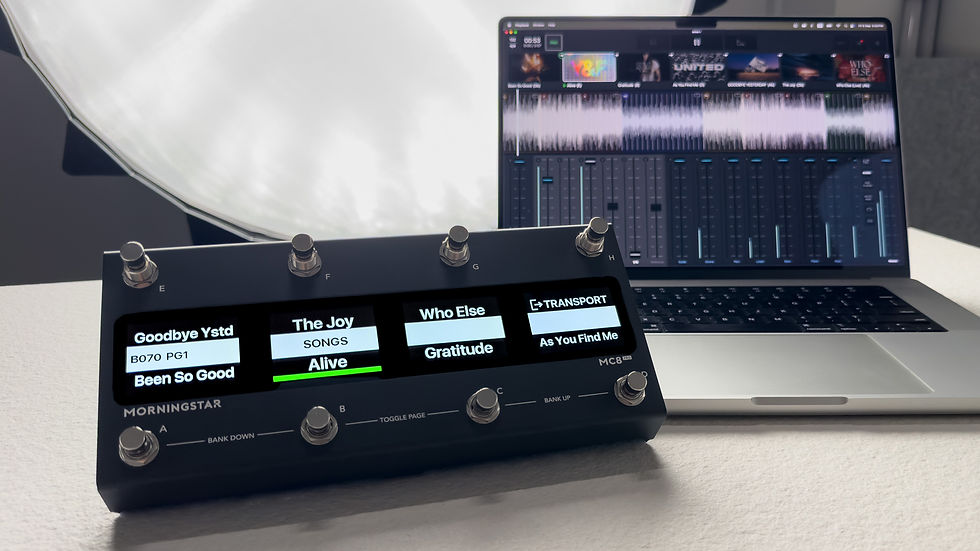
How to Sync Effects with MIDI Clock: Using a MIDI Foot Controller
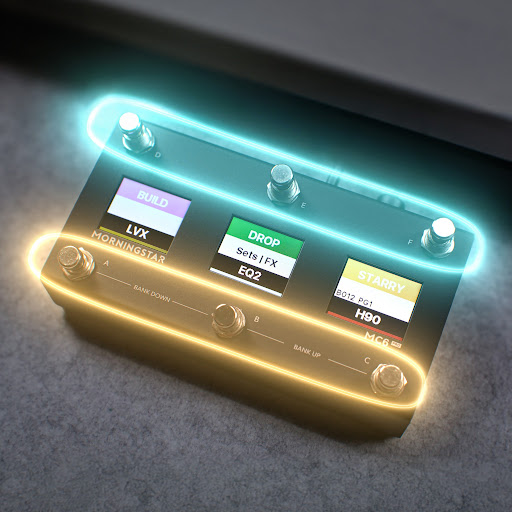
A MIDI foot controller is known as the tool for recalling presets and tweaking effect parameters. But it quietly handles another important job that can make or break a live set: keeping the tempo of your effects locked to every song you play.
In this guide, we'll look at three practical MIDI Clock workflows you can set up with a Morningstar MIDI controller — so your delays, modulation and other time-based effects are always in time, on every song.

Why Sync Effects with MIDI Clock (not just CC tap tempo)?
You can absolutely send a CC message to trigger tap tempo on a receiving device. But MIDI Clock goes a step further: it lets you set your effects to precise, pre-set BPMs instead of tapping a tempo in by foot and by feel.
That precision really shines if your band plays to a click track or runs backing tracks. One press, and every connected device is synced to the exact BPM your song needs. MIDI Clock is also MIDI channel agnostic — it's broadcast to all connected devices at once, so everything locks in together. Let's walk through the three different workflows.
Workflow 1: One Song Per Bank
If every song in your set needs its own unique tones, this is the workflow for you. Dedicate one bank to each song, with each switch handling a section — Intro, Verse, Chorus, Bridge, Solo and so on.
Here's where MIDI Clock comes in: Morningstar controllers can send MIDI messages automatically when you enter a bank. Set an On Enter Bank message to start MIDI Clock at your song's BPM, and the moment you scroll to that song, your tempo is locked in.

Add an Engage Preset message too, and your intro preset is engaged simultaneously when you enter a bank. The moment you scroll to a song, your tempo is synced and the intro preset is engaged. Convenient and assuring.

Workflow 2: Scroll Through Song BPMs with One Switch
Using just a handful of presets across every song? Assign one switch within a bank to scroll through your setlist, while using the others to recall your commonly used presets.

Using the Message Scroll function, each press of the switch sends out the next song's MIDI Clock BPM and renames the switch to show which song you're on. Finish a song, tap once, and your effect BPMs are instantly synced for the next song.

With each press of the switch, a pair of Preset Rename and MIDI Clock messages gets sent, renaming the switch to show us which song we are on and syncing effects to its BPM. For the full steps on how set up the BPM scroll switch, watch this video. You can also download the BPM Scroll switch preset via our Patch Share platform here.

Workflow 3: Jump Directly to Any BPM
Finally, you can also assign each song's BPM to its own foot switch, spread across pages of a bank. This is perfect if your gigs require to select from a repertoire of songs in no particular fixed sequence.

Keep your effect presets on one page and your song BPMs on the others. Toggle over, cue up the BPM for whatever song the moment calls for, then toggle back to your presets. With this workflow, you get total freedom to jump around your repertoire.
Which Workflow Is Right for You?
Song Per Bank: Every song has its own tones and structure
BPM Scrolling: Fixed setlists with shared presets
Direct BPM Access: Spontaneous sets and open repertoires
Each has its own strengths, so pick the one that fits the way you perform. However you play, MIDI Clock makes sure your effects are always in perfect time with no fumbling or tapping required.
If you want to know exactly how to set these workflows up, watch the full video.